Cisco Jabber recording
How to Record Cisco Jabber Calls: CUCM Settings for a Legacy Client
Jabber is a legacy client in many Cisco estates, but it still carries business calls. These are the CUCM settings you need to record it reliably.
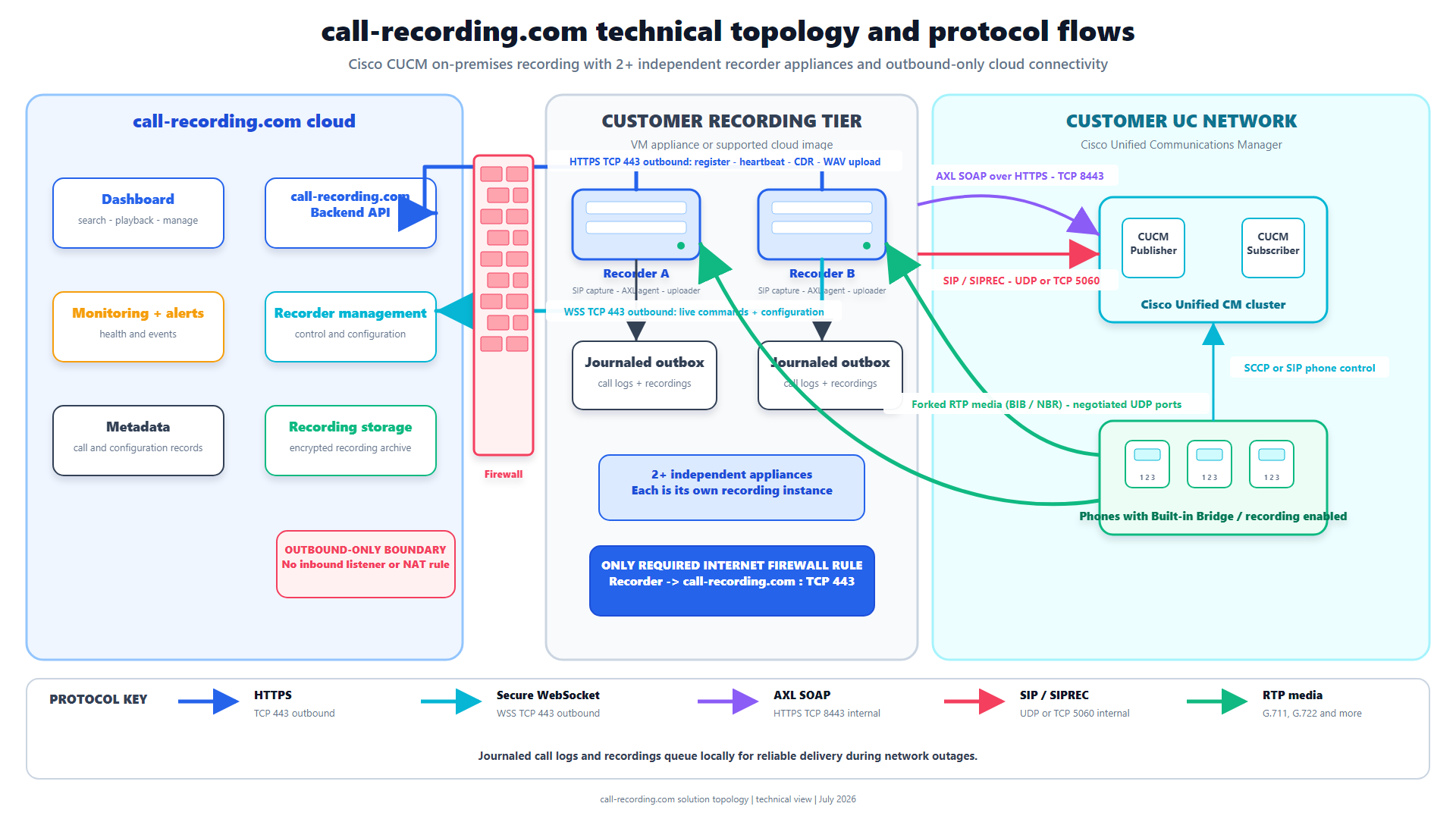
Signal path
Product fit
Where call-recording.com fits
call-recording.com guides the CUCM setup, receives supported Jabber Built-In Bridge media through a customer-hosted recorder, protects recordings during delivery, and provides searchable cloud access.
Short answer
Cisco Jabber is now a legacy client in many Cisco environments, but it is still widely used. Some organizations are moving to Webex App, while others still depend on Jabber for softphone calls, contact-center work, or older CUCM designs. Cisco also continues to publish current Jabber releases, so “legacy” does not mean that every Jabber deployment is unsupported.
Jabber recording is normally configured in Cisco Unified Communications Manager (CUCM), not on the user’s PC. For phone-based recording, CUCM tells the Jabber softphone device to fork a copy of the call audio to a recording server.
The main settings are simple: turn on the Built-In Bridge for the Jabber device, enable recording on its directory number, assign a recording profile, and make sure CUCM can route the recording calls to the recorder.
The CUCM settings you need
Most Windows Jabber softphones appear in CUCM as a Cisco Unified Client Services Framework device with a name beginning with CSF. Open that device under Device > Phone, then check these settings.
- Set Built In Bridge to On. Do not leave it at Default unless you have already enabled the bridge cluster-wide.
- Open the directory number attached to the CSF device.
- Set Recording Option to Automatic Call Recording Enabled when every in-scope call must be recorded.
- Use Selective Call Recording Enabled when supported desktop users should start and stop recording from Jabber. Cisco documents this on-demand option for CUCM 12.5(1) and later.
- Choose the correct Recording Profile.
- Set Recording Media Source to Phone Preferred when Jabber’s Built-In Bridge is the recording source.
Automatic and selective recording are different policies. Automatic recording is normally the clearer choice for compliance because it does not depend on a user pressing Record. Selective recording can be useful for interviews, training, or other approved calls that should be captured only when needed.
The recording profile and SIP route
The recording profile tells CUCM where to send the forked audio. Create it under Device > Device Settings > Recording Profile.
Set its Recording Destination Address to the directory number or URI used by the recording server. Its Recording Calling Search Space must be able to reach the partition containing that destination.
CUCM also needs a route pattern for the recording destination and a SIP trunk or route list that points to the recorder. If the calling search space, partition, route pattern, or trunk is wrong, Jabber may place the normal call successfully while no recording reaches the server.
call-recording.com can guide this CUCM setup and receive the two audio directions from the Jabber Built-In Bridge. The customer-hosted recorder then protects the recording and delivers it to the searchable dashboard. See the self-service deployment guide and recording integrity design for that workflow.
Useful optional Jabber settings
Most deployments do not need special Jabber XML settings, but two groups of options can help.
For desktop Jabber on CUCM 12.5(1) or later, Prefer_BIB_Recorder can force a conference call to use Jabber’s Built-In Bridge instead of an available external conference bridge recorder:
<Prefer_BIB_Recorder>true</Prefer_BIB_Recorder>Jabber also supports client settings such as EnableRecordingTone, LocalRecordingToneVolume, NearEndRecordingToneVolume, and RecordingToneInterval. CUCM has separate service parameters for playing recording notification tones to the user, the other party, or both.
Recording notices are a policy and legal decision, not just a technical preference. Choose the correct announcement or tone for the people and locations involved. The call recording laws guide is a useful starting point, but it is not legal advice.
Remote Jabber users
Jabber calls made through Mobile and Remote Access can also use Built-In Bridge recording. Cisco says BiB recording over MRA is configured in CUCM and that it adds bandwidth and call-capacity demand.
Test remote calls separately from office calls. Confirm both audio directions, transfers, holds, conferences, and calls between two Jabber users. Also confirm that firewalls allow the required SIP and media paths between CUCM, Expressway where used, and the recorder.
If Jabber calls are not recording
Check the path in this order:
- Confirm that the call used the expected CSF device rather than a desk phone or another controlled device.
- Confirm Built In Bridge = On on that device.
- Confirm the directory number has the correct recording option and recording profile.
- Confirm the recording profile’s calling search space can reach its destination.
- Confirm the route pattern selects the recorder SIP trunk or route list.
- Check that the recorder supports the codec used by the call and receives both recording dialogs and both audio streams.
- Run separate tests for internal, PSTN, transfer, conference, VPN, and MRA calls.
Do not judge the setup from one extension-to-extension test. Jabber-to-Jabber calls, remote calls, and conferences can take different media paths. Running a short call matrix now is much faster than finding gaps after a compliance request.
Is it still worth supporting Jabber recording?
Yes, when Jabber is still carrying real business calls. A migration plan does not remove today’s recording duty. Keep the current Jabber estate recorded and monitored while users move to Webex App or another platform.
At the same time, check the exact Jabber version. Cisco has published end-of-life notices for older releases and older licensing models, while newer Jabber releases remain available. Upgrade unsupported versions and include recording in every migration test.
call-recording.com can keep authorized recordings searchable through a mixed Cisco estate, including current CUCM capture and supported Webex recording imports. The CUCM-to-Webex guide explains that transition.
Bottom line
Jabber may be a legacy client, but it is not gone. If people still use it, its calls still need the same recording, retention, and review controls as calls from newer clients.
For the common CUCM design, remember four items: Built In Bridge On, the right Recording Option, the right Recording Profile, and a working route to the recorder. Then test the call types your users actually make. call-recording.com provides a guided way to configure, capture, protect, and search those recordings without waiting for a large professional-services project.
Product fit
Where call-recording.com fits
call-recording.com guides the CUCM setup, receives supported Jabber Built-In Bridge media through a customer-hosted recorder, protects recordings during delivery, and provides searchable cloud access.
Sources
Primary references and technical evidence
Check commands, legal scope, and policy decisions against the current version of each source for your environment.
Legal and compliance content is general information, not legal advice. Cisco behavior and commands vary by release, platform, firmware, and call flow.
Keep reading